Demand Analysis
Use the Manage tab to view staff cover for a selected month and day. The effect of any changes made to employee availability can be instantly identified.
- Open the Manage tab:
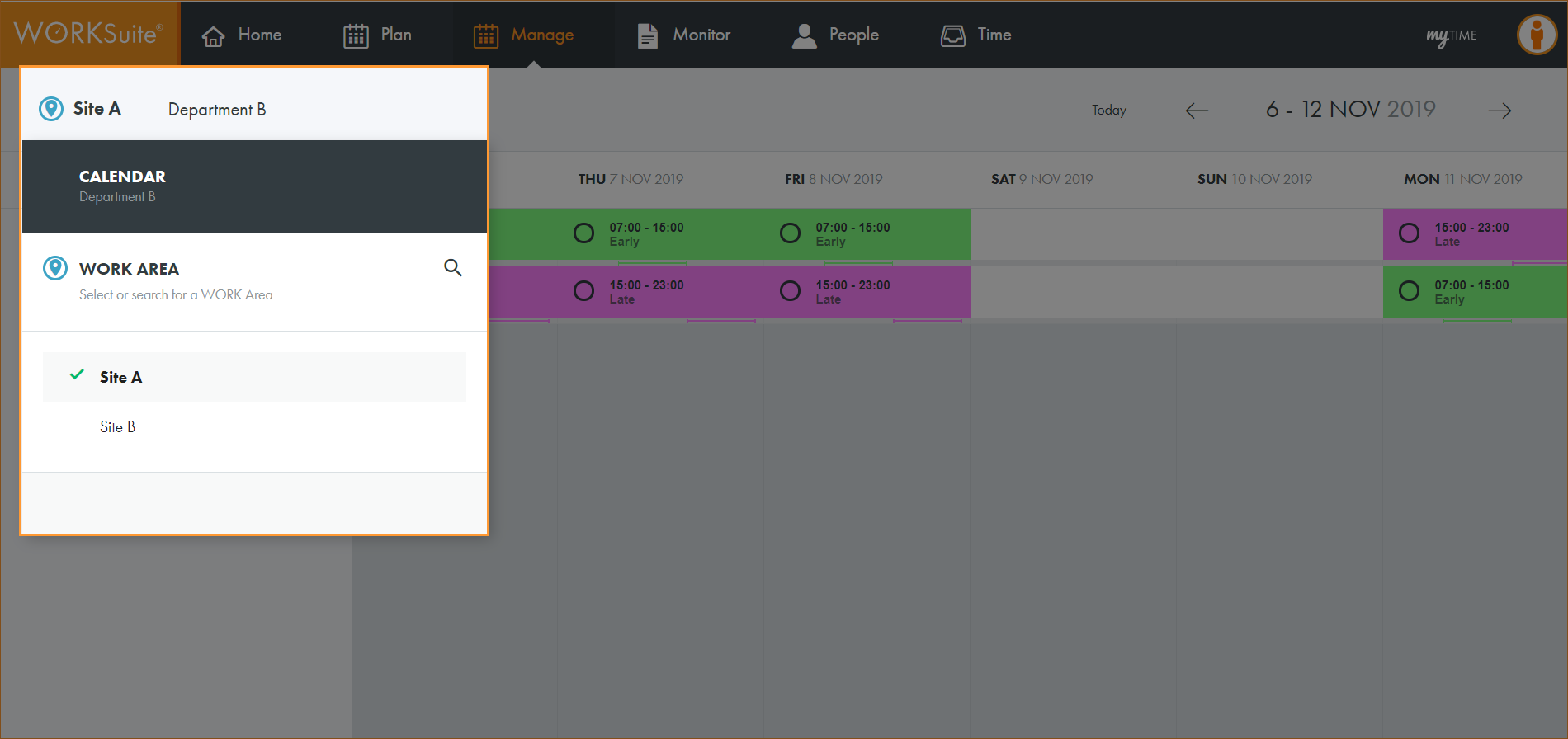
- Click
 and select the work area that you want to work with:
 - By default, your previously selected work area is preselected.
- If you only have access to a single calendar, this is pre-selected when the screen loads. There is no need to select a calendar.
- Select the calendar that you want to work with:
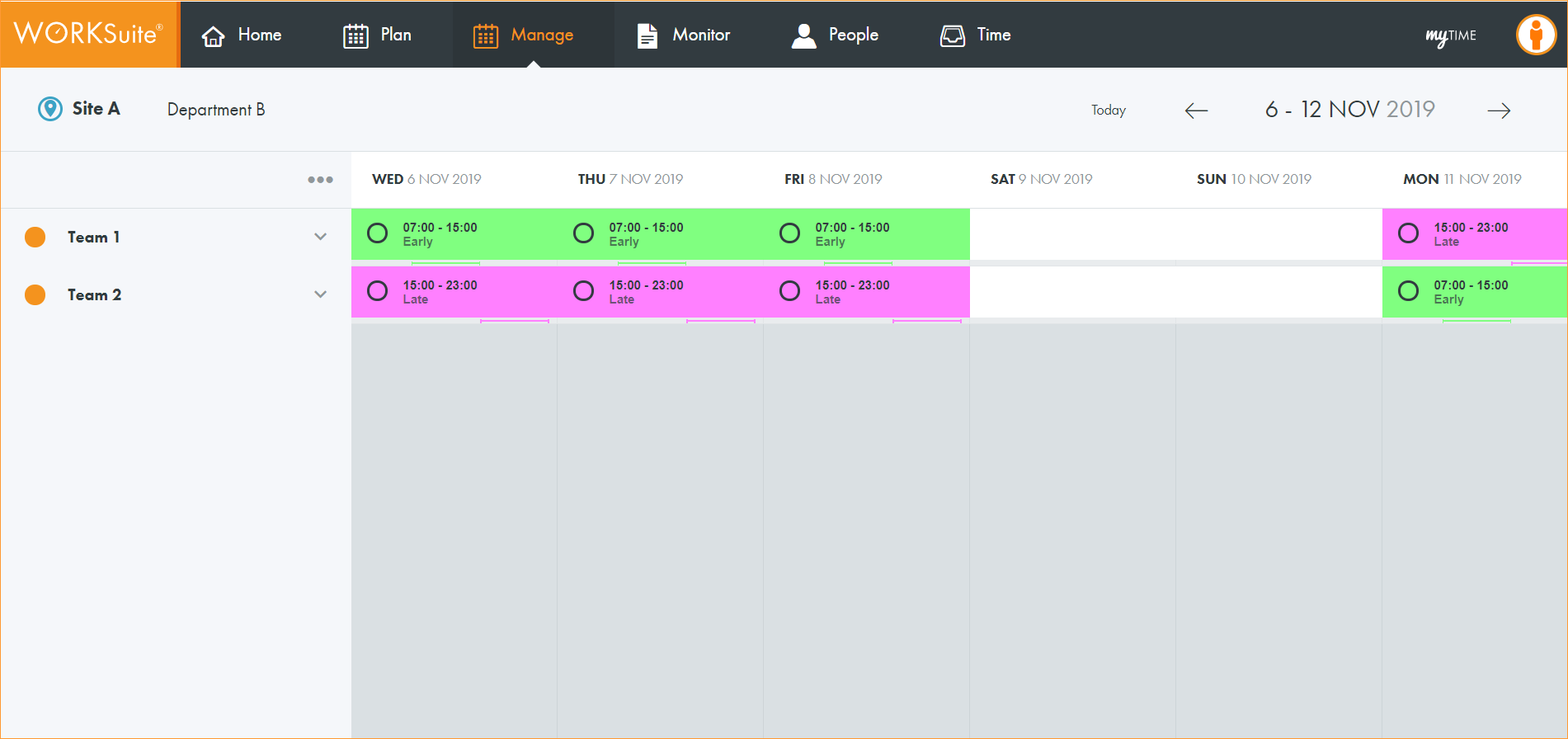
- Select Today or use the date navigation tools to select the dates that you want to view:
- Click ... in the top left of the header and select Demand Analysis.
- On target = Green.
- Over target = Blue.
- Sub target = Yellow.
- Critical = Red.
- Hover over a day in the graph to view the Target/Critical/Working (T/C/W) statistics.
- Scroll down the screen to see days of the month listed. Exact staffing figures for each day are displayed. The TARGET demand, CRITICAL demand (absolute minimum needed to meet work requirements) and the actual number of staff WORKING is shown:
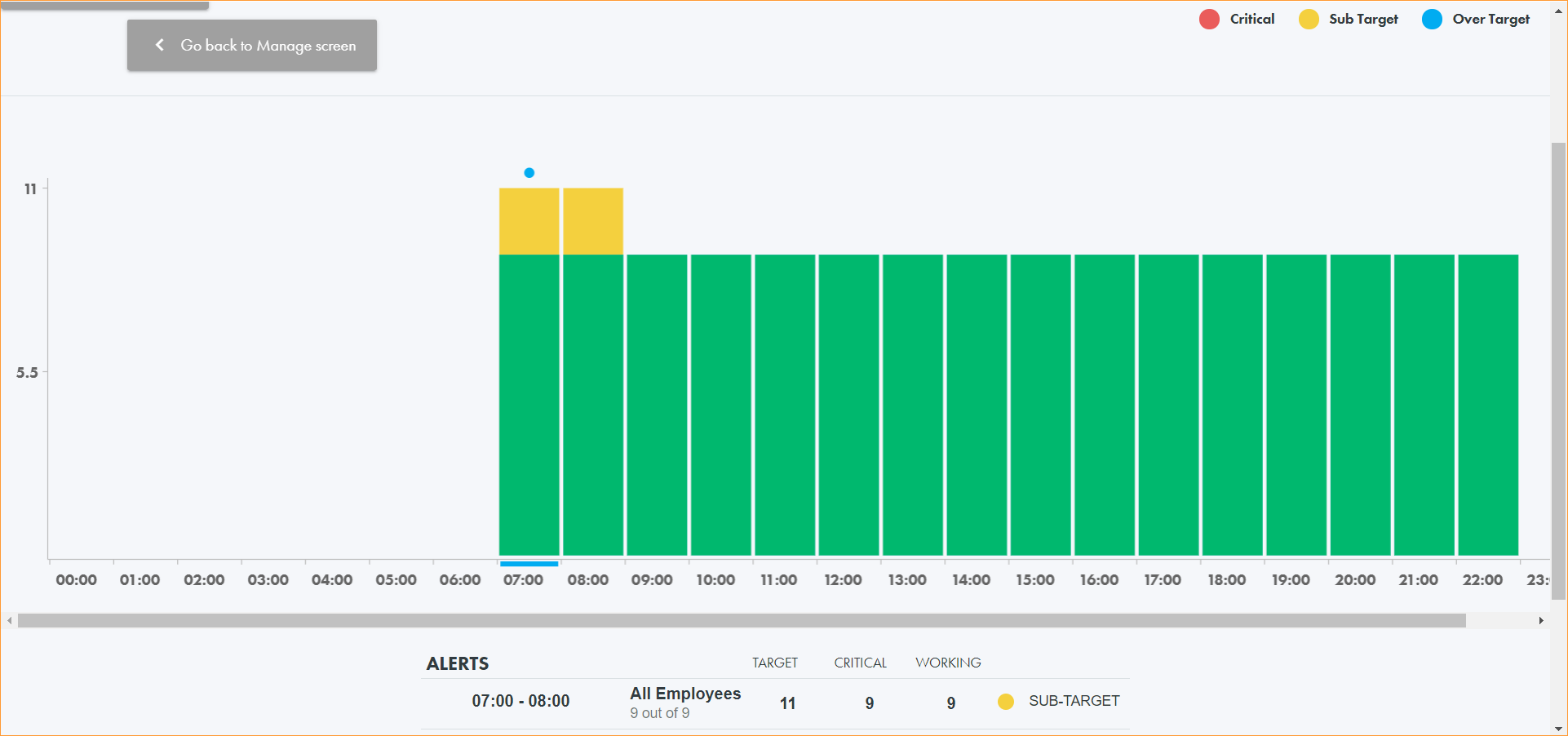
- Click on a day in the graph to see staffing demands broken down by hour:
- Click on an hour in the graph to refine your view further.
- Again, hover over a bar in the graph to view 'Target/Critical/Working' (T/C/W) statistics and scroll down to see statistics listed.
- Click Go back to Manage Screen to return to the Manage screen.
Note:
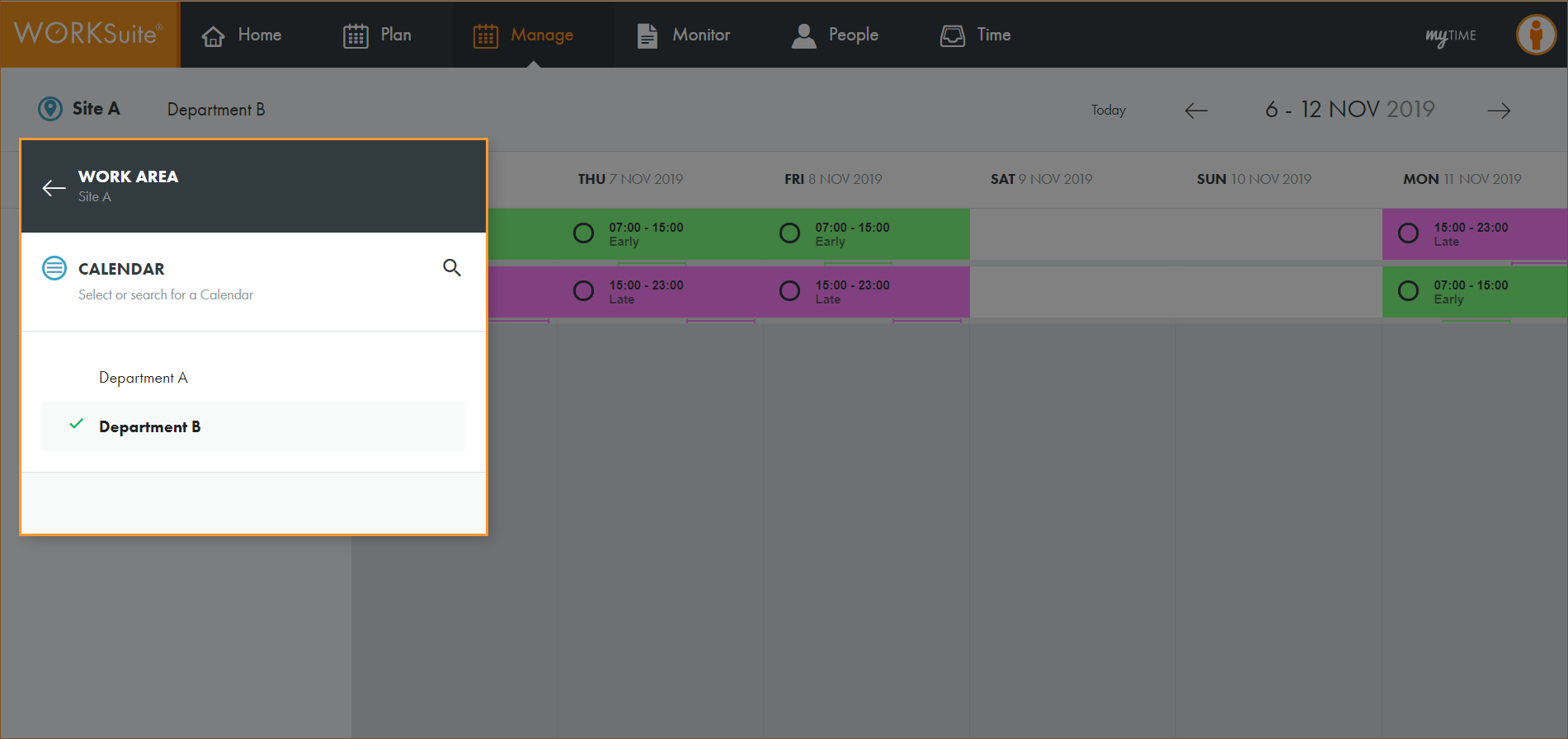
Note: By default, your previously selected calendar is preselected.
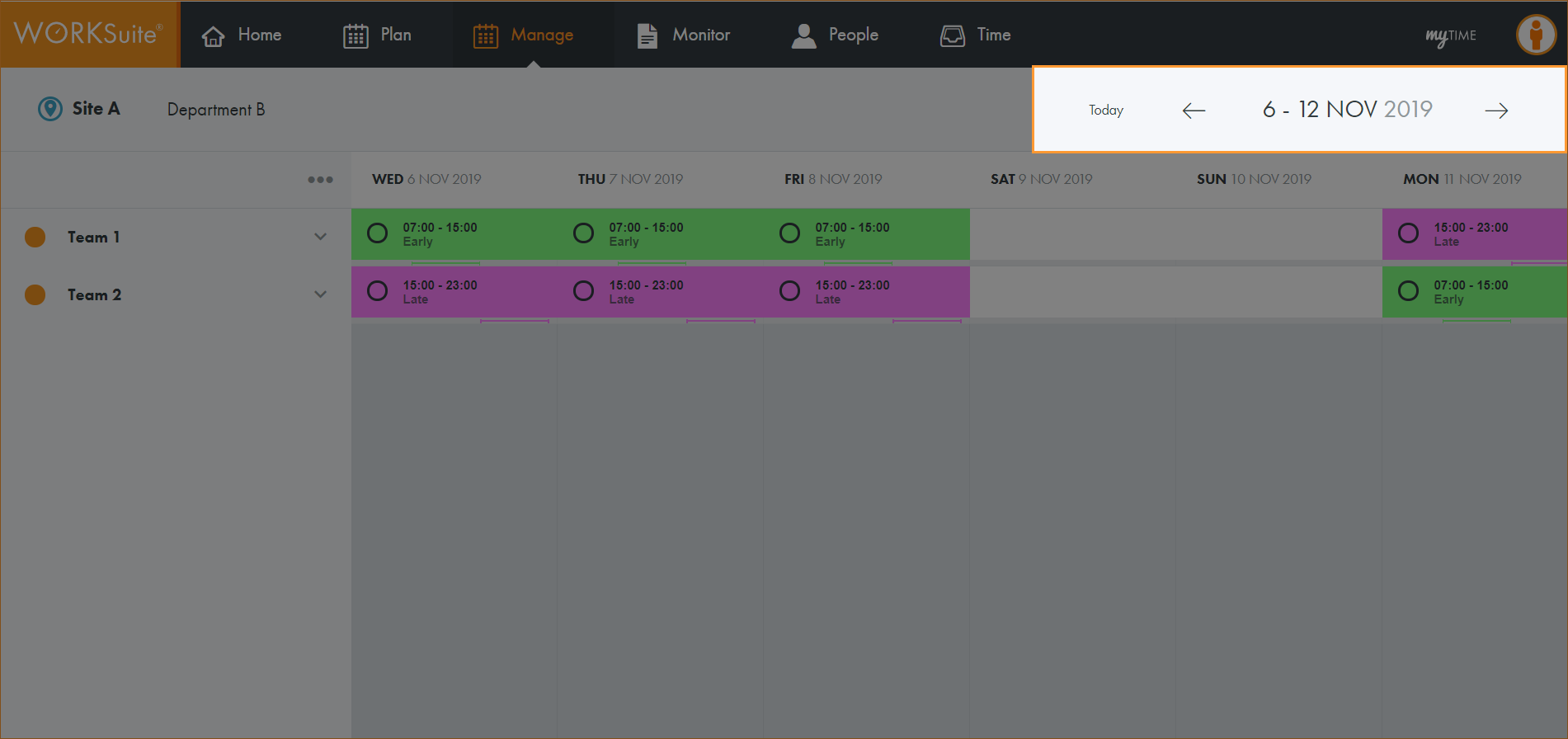
Note: You cannot navigate to a new week until the information for the week which is currently shown is fully loaded. The navigation buttons are temporarily disabled to prevent multiple weeks being loaded at the same time.
All teams published in the selected calendar are listed.
The Demand Analysis screen is displayed:
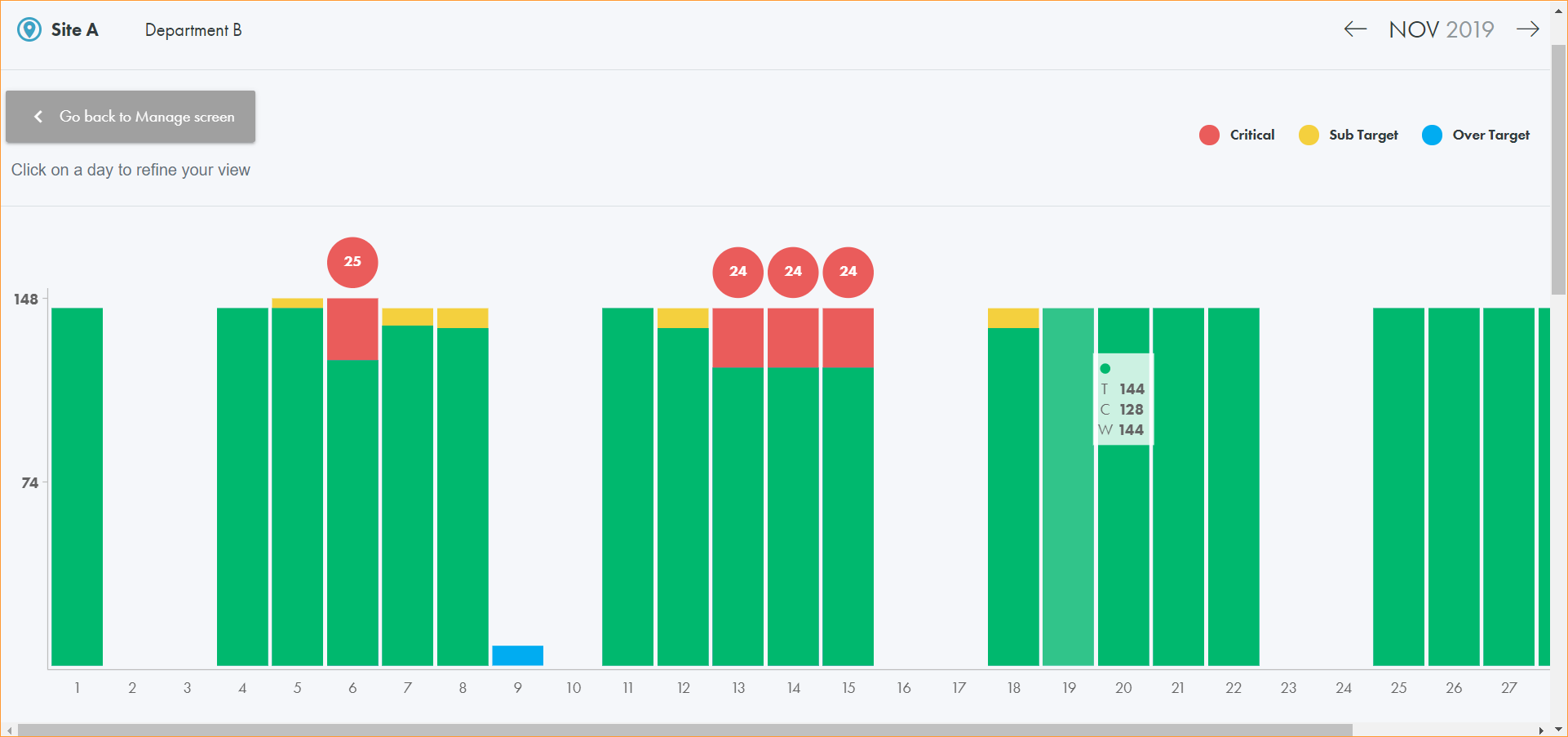
Demand for each day is colour coded in the graph to identify whether staffing levels are (a key is displayed in the top right of the screen):
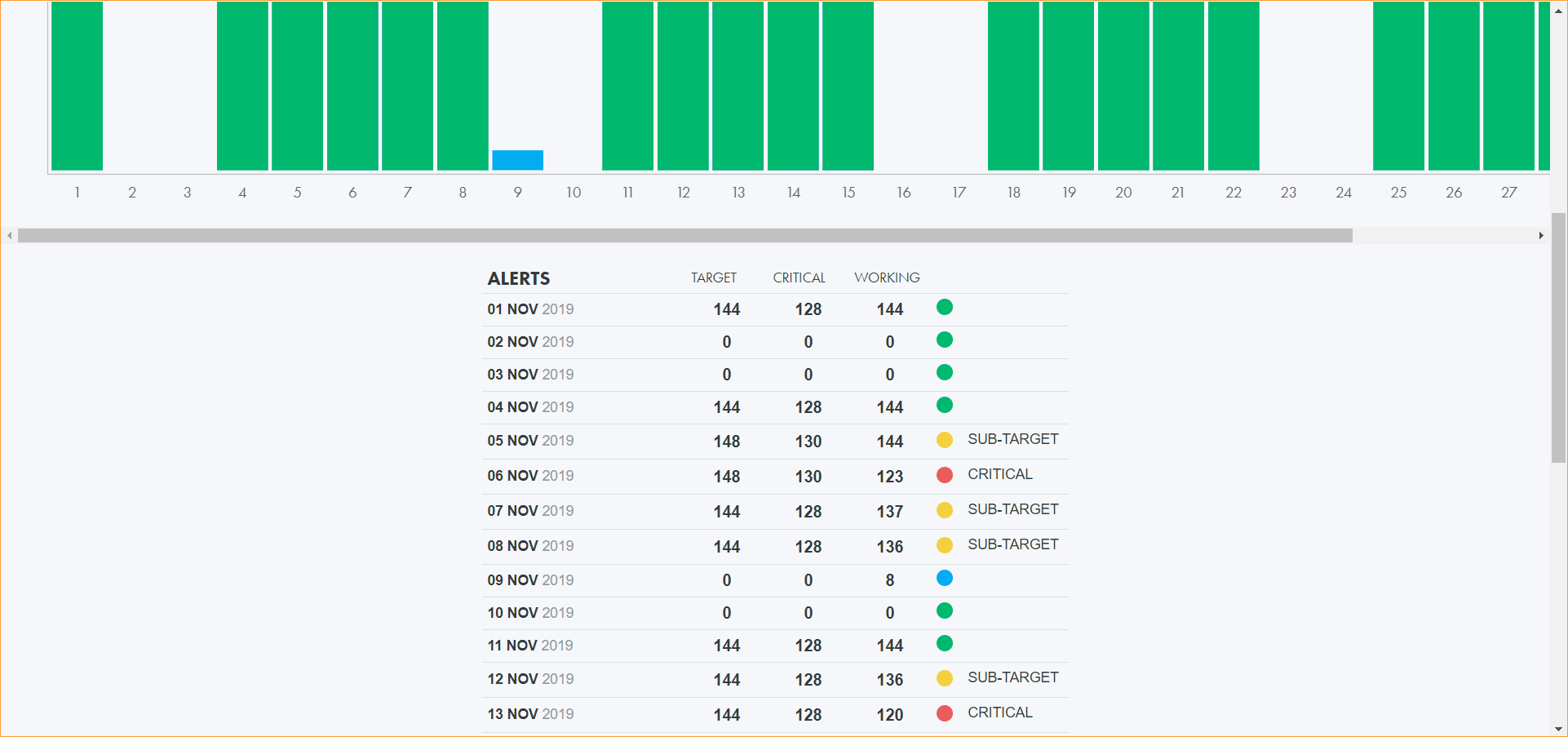
Each day in the list is also colour coded.